

Find your way around
Learn the sidebar, Home, search, patient pages, the Agent and notifications so you can reach any task quickly.
Salisan shows each person the areas their role allows, so a colleague with a different role may see a different sidebar. This page describes the shell everyone shares.
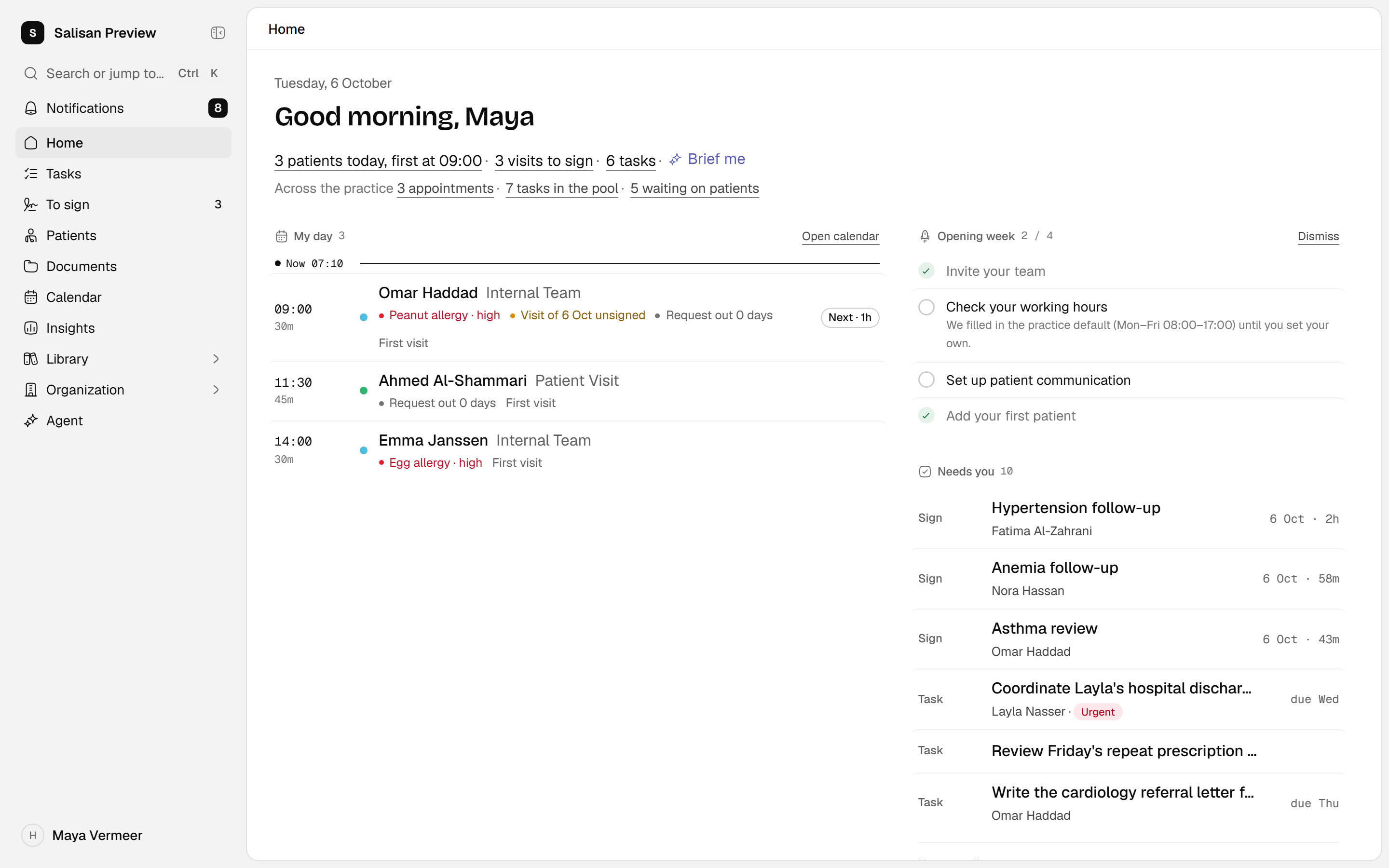
- Move between your main work areas.
- Start from the work shown on your home page.
- Open your account menu for settings and help.
English interface · synthetic example
Open full-size screenshotUse the sidebar
The sidebar lists the areas you use every day first. You may not see every row below.
- Home: your day and the work waiting for you.
- Calendar: appointments and working hours.
- Patients: the patient list and each patient's record.
- Tasks: work assigned to you, to your teams or to nobody yet.
- To sign: visits you started and have not signed. The row appears only while you have some.
- Documents: the practice's shared documents and folders.
- Agent: the AI chat, described below.
The areas you open less often sit under Manage: Insights, Library, Publishing and Organization. Library holds forms, report templates and email templates. If you cannot open it, the row shows Marketplace instead. Publishing appears only when you belong to a publisher, and Organization is for owners and administrators. Choose Manage to open or close the group. It opens by itself while you are on one of its pages.
The search row sits at the top. Notifications, with an unread count, sits at the bottom above your name. Your name opens your Settings, Help & support and Sign out. Which rows you see is explained in Roles and access.
Start from Home
Home opens first. A row of buttons under the greeting starts the common jobs: Book appointment, New patient, New task and Ask the Agent. A button is missing when your role cannot do that job. Below it, Needs you lists tasks, visits to sign and alerts, and My day lists your appointments. If your role covers it, further sections show the state of the whole practice. Choose Start visit next to an appointment to begin documenting it. Home explains each section.
Search and jump
Press Ctrl+K on Windows or Cmd+K on macOS, or choose Search or jump to… in the sidebar. Type at least two letters of a patient's name to find them. Search also jumps to pages and starts common actions, such as New appointment, which opens the calendar ready to book. On a phone, use the search button at the top of the page.
Search follows your access. A patient you cannot open does not appear, and registering them again creates a duplicate. Ask an administrator instead (see Roles and access).
Read a patient's record
Opening a patient shows the Record page: allergies, care team, next appointment, diagnoses, medication, readings and forms. Other pages sit beside it: Visits, Documents & files, Tasks, Care plans, Emails, Requests and History. If your role has no clinical access, Visits and Care plans are not listed.
In the patient bar, Start visit begins a visit in one click, and the arrow beside it picks another visit type. New writes a document, uploads a file, books an appointment, writes an email, sends a form or adds an entry such as an allergy, diagnosis, medication or reading. What a visit, a draft and a signed note each mean is explained in Saved, recorded and signed.
Ask the Agent
Choose Agent in the sidebar to chat, or use Ask the Agent on Home or the patient list. The Agent drafts text and prepares work. It asks you before it sends or books anything. See The Agent and you.
Check notifications and get help
Notifications at the bottom of the sidebar shows an unread count and opens a short list. Open inbox goes to the full page, where you can choose Mark all as read. Notifications explains what triggers them.
Choose Help & support from your name menu to reach support. Workspace times follow your browser's time zone, so check it if you work in another country.