

Appointments
Book, move and cancel appointments in the calendar, and know when the patient is emailed.
An appointment reserves time in the calendar for a patient and the people who see them. It is not a clinical entry: the contact itself is recorded as a visit.
Clinicians can book on the calendars of members of their teams. Front desk, admins and owners can book on everyone's calendar. Calendar times show in your browser's time zone.
Book an appointment
- In the patient's record, choose New → Appointment. The calendar opens with a new appointment already set up for that patient. To book without starting from a patient, choose New appointment in the calendar, Book appointment on Home, or New appointment in search, and choose the patient in the editor.
- Check Patient. Choose Type if your practice has appointment types.
- Under With, choose the clinician or clinicians who attend. Select a name to make that person the lead.
- Under When, pick one of the suggested times or set the date, time and duration yourself.
- Under Where, choose the site or room. This row appears once a patient is chosen.
- Choose Book. Ctrl or ⌘ with Enter does the same.
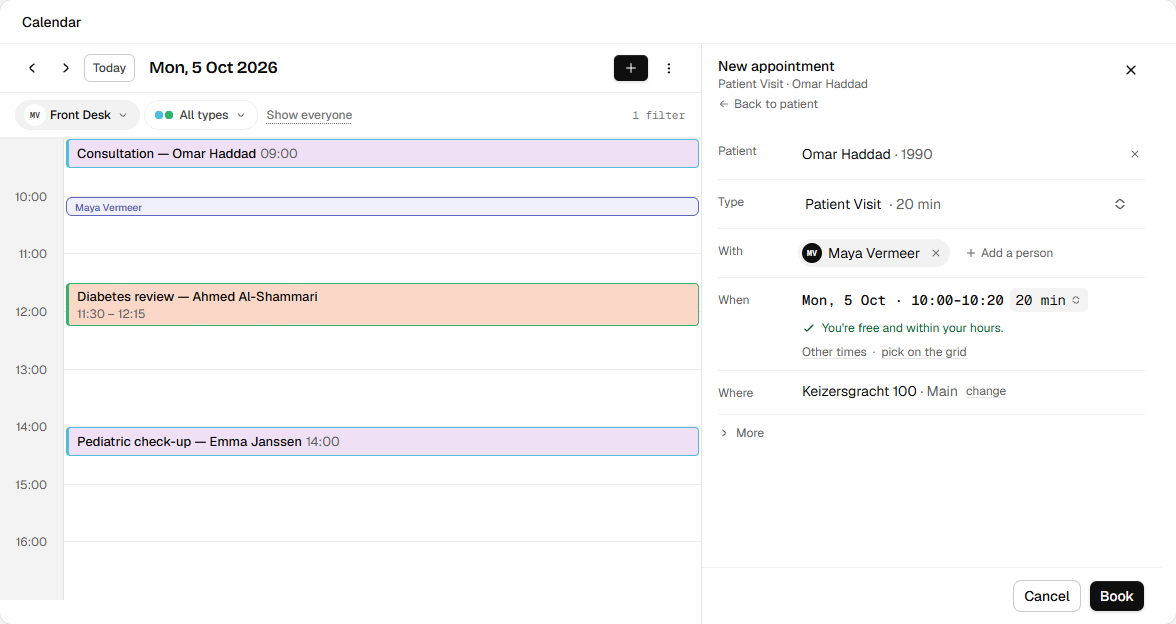
- Confirm who the appointment is for and with.
- Check date, time, duration, and location before booking.
English interface · synthetic example
Open full-size screenshotThe form tells you when someone is busy or outside their working hours. If you still choose Book, a Scheduling warning lists each clash and you can choose Go back or Schedule anyway. A suggested time is only a suggestion: the booking exists when Appointment booked appears and the appointment shows in the calendar.
Without a patient, the appointment is an internal block and you give it a Title.
Email to the patient
Booking a patient appointment emails the patient, so check the address before you choose Book. When a confirmation will be sent, a line under Patient names the address it goes to. When no email will be sent, there is no line.
- Confirmation. Sent when the patient has an email address on file and has not declined email.
- Update. Sent when the time, place or other patient-visible details change.
- Cancellation. Sent when you cancel an appointment the patient was already told about.
- Reminder. Sent the day before, only for appointments booked more than eight days ahead.
If the patient has no address or has declined email, no email is sent. In a visit note, the appointment block shows Booked · emailed or Booked (not emailed). The text patients receive, including the appointment note and whether the clinician is named, is set under practice settings.
Repeat an appointment
Open More in the editor and use Repeat. Choose Every weekday or Custom, then set how often it repeats. Under Ends, choose Never, On date or After a number of occurrences. The first appointment counts toward that number.
A summary line below the field reads the rule back in words, for example every 2 weeks on Tuesday. Check it before you choose Book.
For monthly rules, you can follow the day of the month or the weekday. A rule for day 31 skips months without that date.
The repeat rule is fixed when you book. It shows read-only afterwards. To change the pattern, cancel the future appointments and book a new series.
Change an appointment
Click the appointment in the calendar to open the editor. Change the fields and choose Save. In views that allow it, you can also drag an appointment to a new time or resize it, then check the result.
For a repeating appointment, Edit recurring event asks which ones to change:
- This event changes one date.
- This and following events changes this date and later ones.
- All events changes every upcoming one. Past dates stay as they are.
Internal notes in More are for staff. The patient does not see them, and they do not replace the clinical note.
Cancel an appointment
Open the appointment and choose Cancel appointment. For a repeating series, pick This appointment, This and following appointments or All appointments, then choose Cancel appointments.
Cancelled appointments cannot be restored, and the people involved are notified. Book a new appointment if you cancelled the wrong one.
Cancelling an appointment does not remove a visit note or anything recorded in it.
Related
- Calendar settings: appointment types, locations and working hours.
- Visits and notes
- Patient messages