

Visits and notes
Start a visit, write the note, put findings in the record and sign it.
A visit is the working note for one contact with a patient. It stays open, and unsigned, until you sign it. An appointment can exist without a visit, and a phone call can have a visit without a calendar booking.
Start or continue a visit
You need write access to this patient's clinical records.
- Open the patient and check their name and date of birth.
- Choose Start visit in the patient bar. The note opens at once.
- To pick another type, open the arrow beside Start visit and choose In practice, Home visit, Phone consultation or Video consultation.
- Write in the note that opens. Give it a clear title.
Start visit uses a default type, marked Default in the arrow menu. It is the type of the patient's appointment today, then the type you last started for this patient, then In practice. When you start the type of today's appointment, the visit is linked to that appointment.
The same button sits on the patient's appointment line once the appointment is due, at the end of a row in the Patients list when you point at it, and on an empty Documents & files page. On Home, Start visit beside an appointment starts the visit for that appointment. While a visit is open, the patient bar shows Continue visit instead, so you return to it rather than start a second one.
The patient's Visits page lists earlier contacts and unsigned notes. The note saves as you type. Check the indicator reads Saved before you close the tab.
Findings stay drafts until you record them
Type / in the note to add a block: Diagnosis, Medication, Allergy, a vital such as Blood pressure, a Check-in, a Referral or an Appointment. You can also attach a file or choose Transcribe audio; see Recording and transcription.
A block is a draft. Typing it writes nothing to the patient's record, and neither does naming a diagnosis in plain text.
- Complete the block's fields and check the values, units and catalog item.
- Press Enter or choose Done. The block is now ready, but it is still a draft.
- Choose Add 3 to the record at the top of the note to record every ready draft at once. The number is how many are ready. Signing does the same for any ready drafts that remain.
- Check that the entry appears in its section of the record.
If one draft fails, it shows its own error and Try again. The others stay recorded, and trying again does not record them twice.
Changes proposed by the Agent are drafts too. Keeping its text does not record the findings it suggested. Review them yourself; see Patient documents.
Sign the note
Sign when the note is complete. Signing records ready drafts, saves the note and seals a version, in that order.
- Read the whole note and each draft block. Finish or remove any unfinished drafts.
- Choose Sign. The panel Sign this note shows how many entries are in the record and how many drafts will be recorded.
- Choose Sign, or Record 3 & sign when drafts are waiting. Choose Not yet to go back.
- Check the signature line for the signer and time.
To work through several finished notes, use To sign, which signs a note and opens the next one.
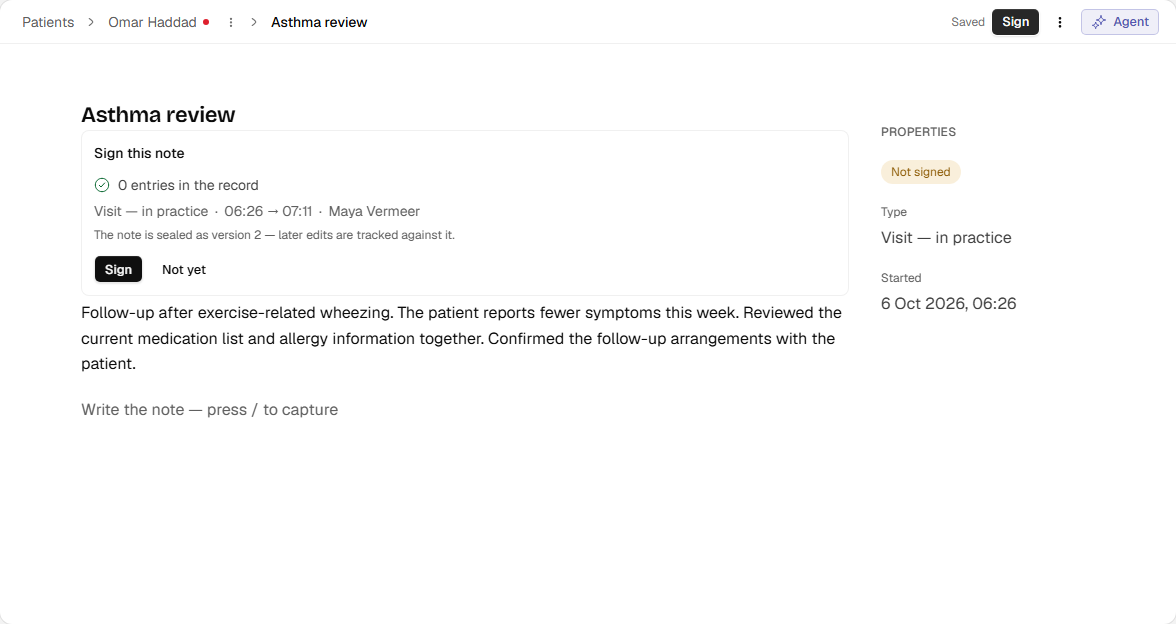
- Saved confirms that the note text has reached the server.
- Review the signing summary, then confirm with Sign.
- The note remains Not signed until signing succeeds.
English interface · synthetic example
Open full-size screenshotSigning cannot be undone. The signed version stays on the record with your name and time, and later edits are tracked against it.
If anything fails, nothing is signed and the visit stays open. Findings that were already recorded stay recorded. Fix the failed block, or wait for unsaved text to save, then sign again.
Amend a signed note
You can still edit a signed note if you can write to the patient's record. The signed version is kept, and the note shows Edited after signing with the time. Choose See what changed to compare the signed version with the current text.
Recording a new finding in a signed note opens Record to a signed note. It warns that recording amends the note, and the edit will show as edited after signing. Confirm only if the finding belongs in this note.
Entries already recorded inside a signed note are read-only there. To change one, open it in the record. If an entry was recorded by mistake, withdraw it (see Clinical records). Changing the record does not rewrite the words of the note.