

Templates
Create reusable forms, reports and emails in the Library, publish them and keep them up to date.
The Library holds the forms, report templates and email templates your practice reuses, together with skills and content you added from the Marketplace. Everyone who uses templates can open the Library and use published content. Creating and editing needs the Manage templates permission, which owners and admins have by default.
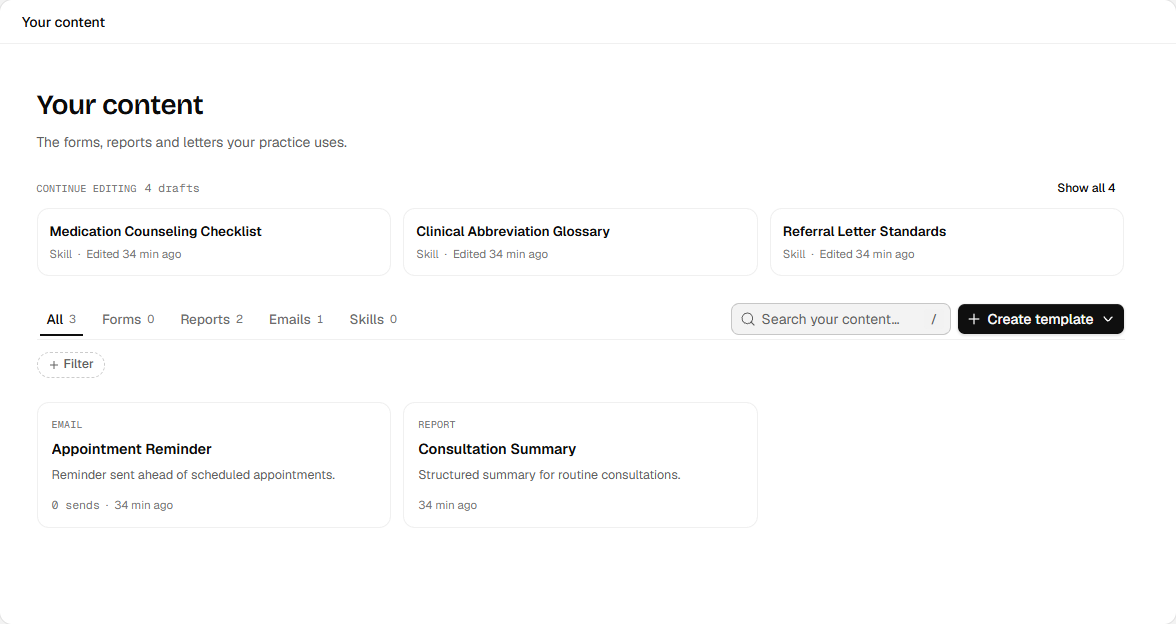
- Find the content type you want to use or maintain.
- Continue editing brings you back to drafts that need review.
English interface · synthetic example
Open full-size screenshotA template is reusable content. A completed form, a report you generate and a sent email are separate results that belong to the patient.
Find and use a template
Open Library → Your content. Library is under Manage in the sidebar. Use the tabs All, Forms, Reports, Emails and Skills, Search your content…, or Filter by language or content status.
- A form is sent or filled in from the patient's record. See Patient forms.
- A report template starts a report with Use, where you pick the patient. Choose Start a report.
- An email template is added with Use a template when you write a patient email.
Only published templates are offered for use. Skills are written in Agent settings. See Skills.
Create a template
- Choose Create template, then Form, Report or Email.
- Enter a title and description, then write the content in the editor. The Agent can draft one for you, and you review it before use.
- Use the preview to read it as the recipient will.
- Wait until your changes are saved, then choose Publish.
Your changes save as you work. A new template is a draft and cannot be sent until it is published.
To insert details that differ per patient, type # and pick a variable instead of typing a name. In a report template, Available in controls whether the template is offered for Organization reports, Patient reports or both. Patient variables only fill in a patient report.
For a form, use Add block or type / to add a question. Common types are Text input, Long text input, Single choice, Multiple choice and Vitals. Turn on Required for answers that must be present. Add Helper text to explain a question to the patient.
Templates start in your clinic's main language. Salisan translates them into the clinic's other languages automatically and keeps text a person typed. A patient receives a language only once every piece of text has a translation. Until then, they receive the original. Check each language before you publish, because a translation is not a clinical review.
Publish a template
Choose Publish. A dialog headed Publish and the template's title opens first. It states who will be able to use the template, and it lists anything you must fix, such as missing text in a language.
Publishing makes the template available to everyone in your practice immediately. It stays inside your practice and is not on the Marketplace. A published form or email can then be sent to patients, so read the preview first.
If an earlier version exists, the dialog says whether this publishes as an update or a new version, and Change lets you pick. Choose an update only when the meaning and behaviour are unchanged. Structural changes to a form, such as new questions or different options, should be a new version so earlier answers stay comparable.
The Library marks a template Draft ahead of published while you have unpublished changes. Colleagues keep using the published version until you publish again.
Version, archive and restore
Use Version history to inspect earlier versions. Restore replaces your current draft with that earlier version for you to review. Publish when you want it live.
Choose Archive from a card's menu to hide a template from active content. Existing work and results are kept. Show archived content with Filter → Content status → Archived and choose Restore. A form with active schedules cannot be archived until you pause or replace those schedules.