

Patients
Find the right patient, register a new one, and keep their details and preferences accurate.
Search before you create. The patient list and the identity details help you tell people with similar names apart. A patient's record then brings together their chart, visits, documents, tasks, care plans, emails and requests.
Find and open a record
- Open Patients and type in Search patients….
- Use the tabs All, My patients and Needs review. Needs review lists patients with an unsigned visit or home readings nobody has marked reviewed.
- Use Filters (for example Clinician, Team, Open items) and Sort to narrow the list.
- Check the name and date of birth before you open a row. A matching name alone is not enough.
- On a wide screen, you can start a visit without opening the record: point at the row and choose Start visit at its end. See Visits and notes.
The record opens on Record, the chart. The other pages are Visits, Documents & files, Tasks, Care plans, Emails, Requests and History.
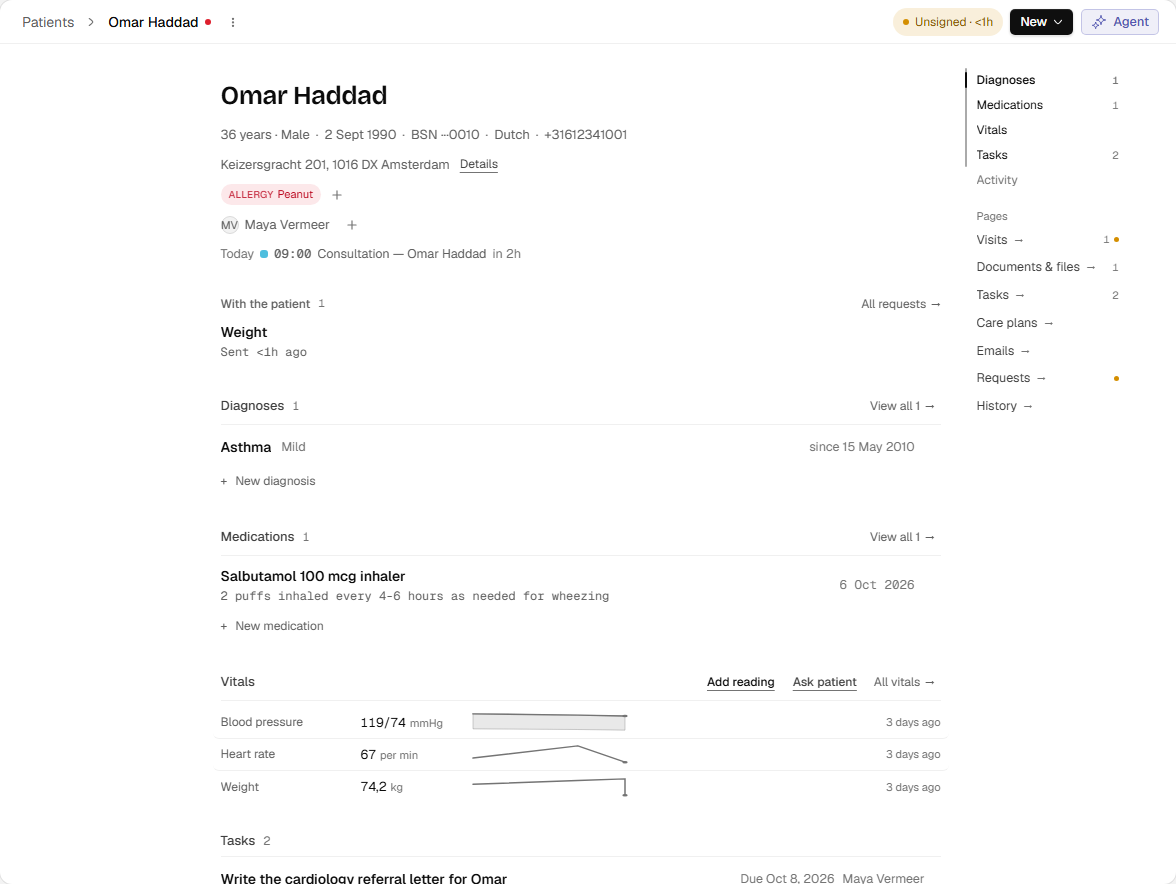
- Confirm the patient before recording information.
- Open the patient’s documents, requests, and history.
- Review the record before adding new information.
English interface · synthetic example
Open full-size screenshotAn empty list can mean filters or your access. Some roles see only patients assigned to them or to their teams. If a colleague can open a record that you cannot, ask a practice administrator to check the assignment. See People and access.
Register a new patient
You need permission to create patients (Create patients).
- Search first. Then choose New patient at the top of the page. It is also on Home.
- Enter the given name, family name, birth date and the other identity fields offered. The identifier fields depend on the practice's country. Without Edit all patients they are read-only, and a colleague with that permission adds the identifier later. For a patient under 18, also enter a Parent or guardian: their Full name and Relationship.
- If Possible match already in this practice appears, choose Open record to check it. A match can be a record you cannot open.
- Choose Create patient. If you are sure it is a different person, choose Create anyway.
The new record opens. Add address, insurance and contacts there afterwards, or choose Full profile in the dialog to fill in the whole registration form first and finish with Add patient. The name and birth date you already typed carry over.
Create anyway creates a second record even though a match exists. Duplicate records split a patient's history, so use it only for a different person.
Correct a patient's details
You need permission to edit this patient: Edit all patients, Edit patients in your teams or Edit assigned patients.
- In the record, open Patient actions and choose Edit. You can also choose Details on the chart.
- Change a value. Address, insurance, contacts, general practitioner and referrer are saved one section at a time, with Save or Done.
- Check the saved message before you leave the page.
Only Edit all patients can add, change or remove national identifiers. With team or assigned editing rights you see the identifiers as read-only text, with a note naming that permission, and you can still change name, date of birth, email, phone and language. Ask a colleague with Edit all patients to change an identifier.
Changes are listed in History. Who may work on a patient is a separate setting from editing their details.
Set email, Agent and analytics preferences
These options sit in the patient's details and apply once saved.
- Do not email this patient stops request links, forms and appointment emails, and anything already queued. If the patient stopped email themselves through a link, the record says Stopped by the patient. Turn email back on only if they ask you to.
- Exclude from AI assistance means the Agent cannot read or act on the record, uploaded documents are not scanned, and visits cannot be recorded or transcribed. Patients under 18 are excluded automatically.
- Exclude from analytics removes the patient from analytics in all clinics.
Keep the email address and preferred language accurate before you send messages or requests.