

Patient forms and requests
Send forms and readings to a patient, fill them in at the practice, and review the answers.
A request asks a patient to complete forms or enter vital readings. The patient answers from an emailed link and the answers go into their record. You can also fill a form in yourself during a visit.
Sending needs the Send email, forms, and requests permission, which every default role has. Filling a form in for a patient needs clinical access to that patient, so a front desk user can send a form they cannot fill in.
Send a request to the patient
- Open the patient and choose Send form in the Forms section, or Send to patient in Requests.
- Select the forms and readings to ask for. They are asked in the order listed, and the arrows reorder them.
- Leave Repeat on Once.
- Check Recipient email and Expires. The link expires after 7 days unless you change it.
- Choose Send link.
Request sent appears with the link, and you can use Copy link. The email is queued, which does not mean it was delivered. See how delivery is tracked.
Choosing Send link emails the patient at once, and anyone who has the link can answer until it expires or you cancel it. Check the recipient address first.
The patient does not sign in. They open the link, complete each step and choose Submit step. Each submitted step is saved separately, so a half-finished request still contains the answers already sent.
If the patient has opted out of email, the dialog says so and Send link stays unavailable. Without an email address, add one first. A form marked Unavailable cannot be selected until it is repaired in the Library.
Ask on a schedule
To collect the same form or reading repeatedly, set Repeat to Daily, Weekly or Every 2 weeks. For weekly, choose the day. Set From and, if the follow-up should end, Until. Choose Start schedule (the button reads Start daily asks or Start weekly asks for those options).
Scheduled asks are not separate links. They reach the patient in their daily email, at the send time set under practice settings. Each selected item becomes its own schedule under Home monitoring, and a new schedule does not mean the patient has answered.
To stop asking, open the schedule under Home monitoring and choose Pause or Stop. Stopping cancels future asks and keeps existing answers. Cancelling a one-time request does not affect a schedule.
Fill in a form at the practice
- Choose New → Form, or Fill in form in the Forms section.
- Select one or more published forms and choose Add. Nothing is sent to the patient.
- Enter the answers and choose Save response.
- Continue until each form shows Saved.
Answers are not saved automatically. If the form is updated while you fill it in, your answers are kept: check them against the new version and save again.
To finish a request the patient started, open it from Requests or the chart and use Save draft and Submit step. Edit submitted step and Save edit change answers entered by staff. If a step was already answered, your answers are not saved.
Follow up on a request
Requests lists what is Waiting on the patient and what Came back or closed. Open a row's menu for these actions:
- Remind sends the patient their link again by email.
- Cancel request makes the link stop working. Answers already submitted are kept.
Scheduled work that is overdue appears on the same page. Answers to scheduled asks are read in Forms and Vitals.
Read and review answers
Returned forms appear in Forms in the record, and readings in Vitals. Open a response to see its questions, answers and where it came from: the patient by link, home monitoring, or entered at the clinic.
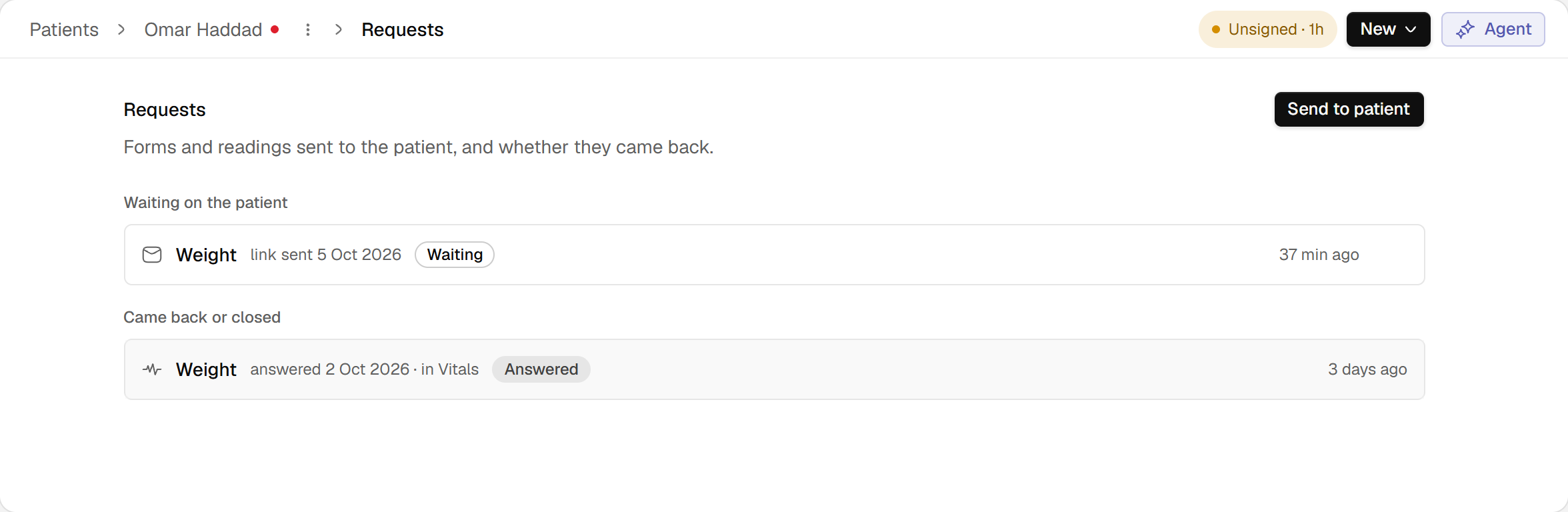
- Waiting means the request has not been answered.
- Open an answered request to review its result; this reading opens in Vitals.
English interface · synthetic example
Open full-size screenshotOn a response from the patient, choose Mark as reviewed once you have read it. Salisan then shows who reviewed it and when. Undo removes that mark and keeps the answers.