

People and access
Invite colleagues, give them roles, organise teams, and remove people or hand over ownership safely.
Open Organization → People to manage who works in the practice. Organization is under Manage in the sidebar. The page has three tabs: Members, Teams and Roles.
You see People if your role has any member, invitation, team or custom-role permission. Owner and Admin have them. How roles, teams and patient assignment combine is explained in Roles and access.
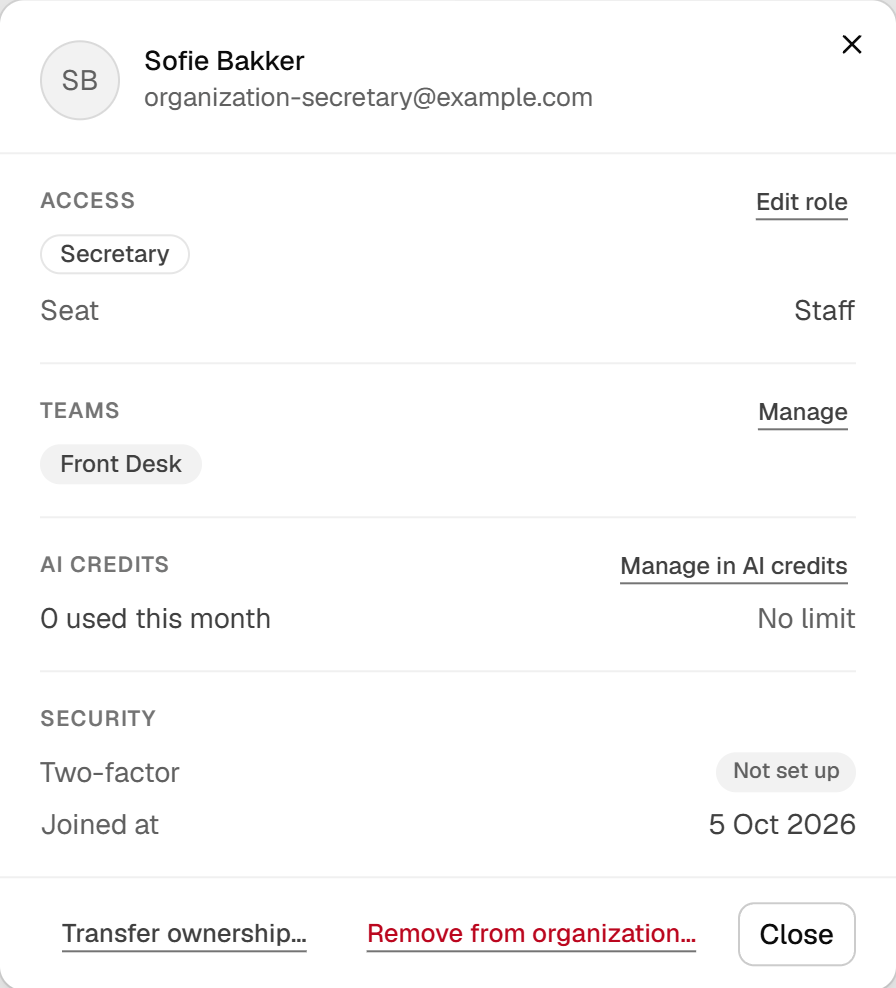
- Confirm the colleague before changing access.
- Review the assigned role.
- Check team membership alongside the role.
English interface · synthetic example
Open full-size screenshotInvite colleagues
Needs the Invite members permission.
- On Members, choose Invite people.
- Enter up to 10 email addresses.
- Under Roles, choose Member, Secretary, Admin or a custom role. You can only grant permissions you hold yourself, and the owner role cannot be invited.
- Optionally choose a Team, then send. The button shows the count, for example Send 2 invitations.
Invitations expire after 7 days. They appear under Pending invitations, where you can choose Resend invitation or Revoke invitation. An expired one shows Expired and Re-invite. Revoking stops that link from working. It does not remove anyone who has already joined.
Each member takes a seat. Roles that can write clinical records take a practitioner seat, and other roles take a staff seat. If a payment for new seats fails, new invitations stay on hold until it is paid. See Billing.
Choose roles
| Role | What it allows |
|---|---|
| Owner | Everything an Admin can do, plus changing Settings (except practice locations), billing, sign-in policy, ownership transfer, offboarding and deleting custom roles. |
| Admin | Members, invitations, teams and custom roles (create and edit). All patients and clinical records, all calendars and calendar configuration, all patient communication, templates, documents, tasks, Insights, AI credits and the audit log. |
| Member | Assigned patients and their clinical records, team calendars, sending patient email, shared documents, using templates, creating tasks, viewing Insights and the Agent. |
| Secretary | Creating, reading and editing all patients, assigning clinicians, all calendars and patient communication, task dispatch. No clinical records. |
To change someone's roles, open the member, choose Edit role under Access, pick one or more roles and choose Update roles. The combined permissions apply immediately. If the change moves the person between seat types, Salisan shows the new price to the owner first.
Custom roles need the Enterprise plan. On the Roles tab, choose New role, then start from a preset or from No permissions. Permissions marked Sensitive deserve a second look. Built-in roles cannot be edited. Deleting a custom role takes its permissions from everyone who holds it, immediately.
Organise teams
Needs the Create teams permission.
On Teams, choose Create team and name it. Open a team and choose Add people to add existing members or invite by email. Existing members join immediately and no email is sent. Starter allows one team. Premium and Enterprise allow any number.
A team can pool tasks, hold its own document library, be a patient's home team and share calendars with members who hold team-scoped permissions. Open a team and choose Remove from team to take someone out. They keep their place in the practice.
Choosing Remove on a team and confirming with Delete team permanently deletes the team's document library. Its members lose the team's task and document scope, its patients lose their home team, and its open tasks return to the everyone pool.
Hand over patients and remove a member
Needs the Remove members permission. The owner cannot be removed until ownership is transferred.
- Open the member and choose Remove from organization….
- If the member is assigned to patients, choose a colleague under Hand their patients to, or Leave patients unassigned, then choose Hand over patients.
- Open the member again and choose Remove from organization….
- Type
REMOVEand choose Remove member.
Handing over patients and removing the member are separate steps. After removal the person's sessions end, they lose access at once and their seat is released. Their name stays on the audit trail. To bring them back, invite them again.
Removal cannot be undone from this screen. Hand over patients first so nobody is left without a clinician.
Transfer ownership
Only the owner can do this. Open another member and choose Transfer ownership…. Type TRANSFER and choose Transfer ownership.
The member becomes the only owner. You become an administrator and no longer control billing or deleting the organization. Only the new owner can give ownership back.